
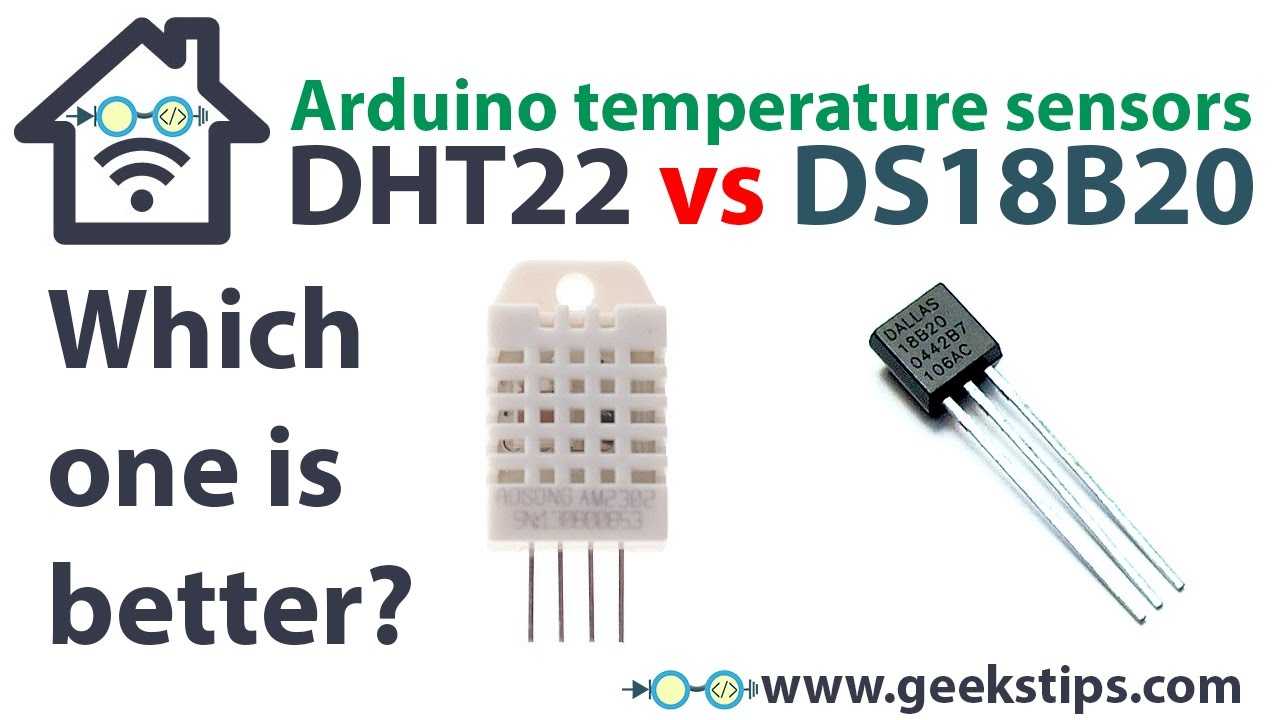
Monitoring temperature and humidity through IoT (Internet of Things) is one of the most popular and practical DIY projects for the home — and for good reason. Whether you’re tracking the temperature in your child’s room or managing a self-regulating indoor heating system, these projects almost always start with a reliable temperature sensor.
There are plenty of sensors available on the market that are fully compatible with Arduino and other development platforms. Choosing the right one can make a huge difference, especially when accuracy matters.
Temperature sensors are widely accessible and affordable — you can find models ranging from $0.50 to $10, both on major Asian e-commerce sites and at your local electronics store. But not all sensors are created equal, so understanding their technical specs and limitations is key before starting your project.
DHT22 & DS18B20 Datasheet review and Arduino Tutorial
In this article I will do a quick review on both DHT22 Temperature and Humidity and DS18B20 Temperature sensor 1-Wire, and I will compare them to give you an idea on which one fits better in your projects. I also invite you to see my quick video review and hands-on to make a better idea about how the sensors look and feel.
First of all, I own 3 of this sensors and I already implemented them in my projects, so I will give you real feedback about how they behave after being in production.
Probably the best books to learn Arduino
- Programming Arduino: Getting Started with Sketches, Second Edition
- Arduino Workshop: A Hands-On Introduction with 65 Projects
- Exploring Arduino: Tools and Techniques for Engineering Wizardry
DHT22 Overview
DHT22 is simple basic, cheap digital temperature and humidity sensor. Its officially sold by Adafruit but is manufactured by many producers, especially by China LTDs (Aosong Electronics Co). It is part of DHTxx series and is considered quite slow, but one of the best or hobbyists who want to embed it in data logging projects. I found it selling from 2.5$ to 10$ in different markets, but being encapsulated in a plastic shape is hard to make any differences in construction quality.
You can buy them in many versions, one is named AM2302 which stands for wired DHT22, the difference being in the fact that it comes with ready to use wires, other versions comes with the sensor soldered on the PCB having resistors and capacitors embedded and regular pins for connections.
[IMG-Gal id=196]
You can see bellow what advantages or downsides come with different technologies:
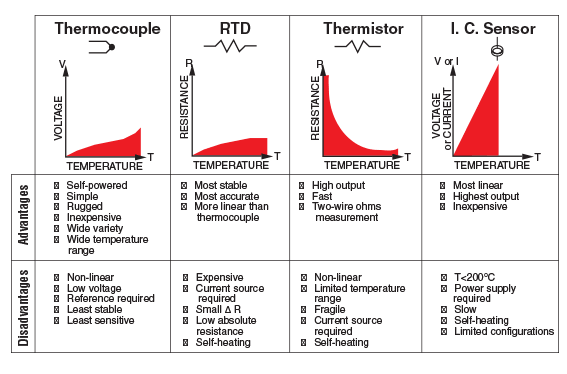
The working principle is simple. Having a capacitive humidity sensor and a thermistor it measures the surrounding air, and sends out a digital signal on the data pin. It doesn’t have any analog output. The only downside of this module is that it can only read data once every 2 seconds, but nothing other than that. Sellers claim that the sensors comes calibrated in accurate calibration chambers but no certificate comes in the box :).
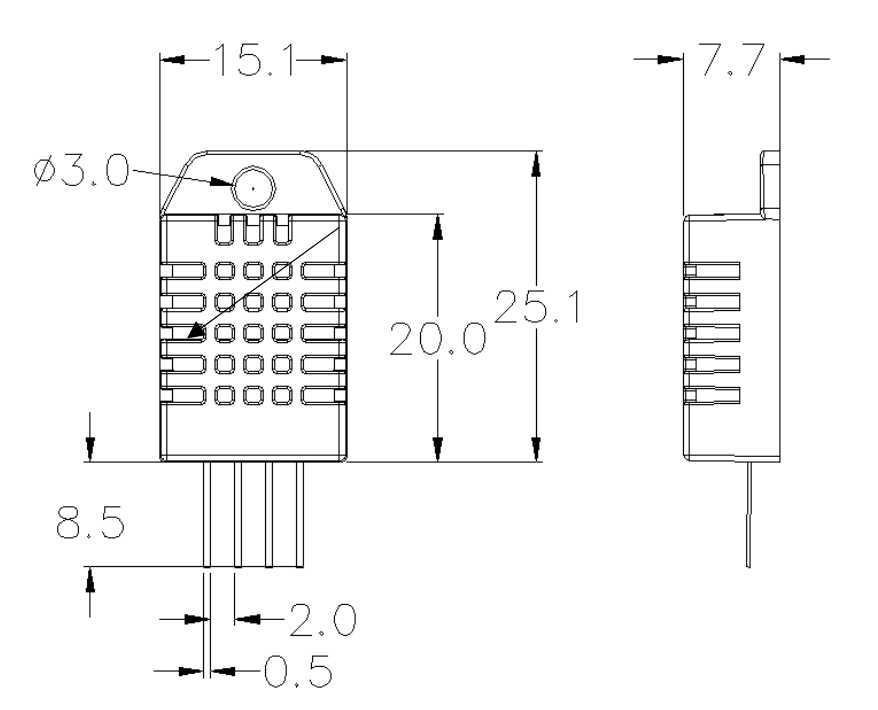
DHT22 Technical Specifications:
Electrical details and power consumption
DHT22 pin description / pinout
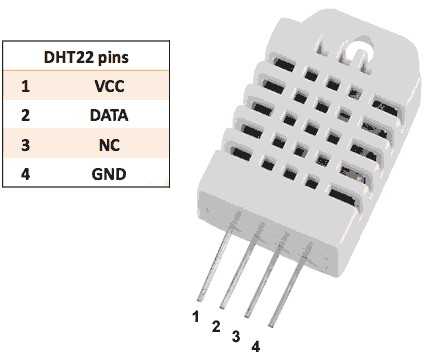
- VCC – (between +3v and +6v)
- Data Pin – digital output signal, the only output available, provides data for both temperature and humidty
- NC / NA – not connected or not available
- GND – ground pin plugged in circuit
Reading DHT22 with micro-controllers
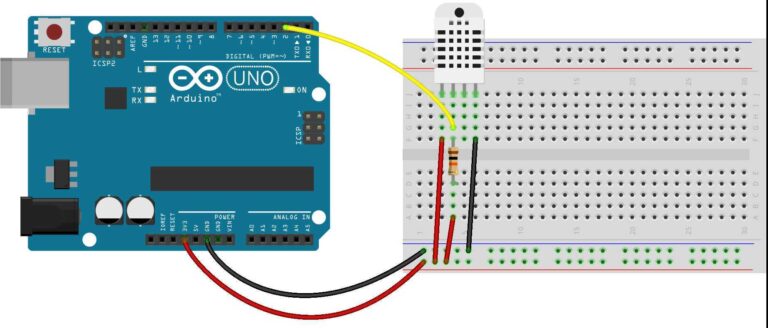
Connecting DHT22 to any microcontrollers or development boards is very easy, you just need three wires. After plugging the power wires you need to connect the data pin from DHT to any digital input GPIO from your microcontroller. A 4.7K – 10KΩ resistor should be pulled between DATA pin and VCC in order to have valid logic signal and don’t melt anything when changing GPIO from output to input. Also I recommend to use a low size capacitor near the sensor pins to cut the power peeks. You can easily connect it with Arduino UNO like in the following picture:
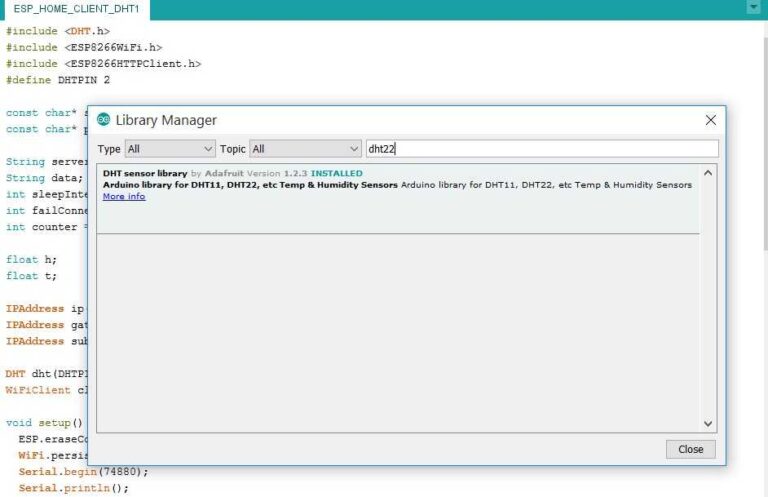
After proper connections are made, next you should download and activate the DHT sensor library provided by Adafruit in case you are using an Arduino to read the sensor. Just open your Arduino IDE, go to Sketch – > Include Library – > Library manager and search for dht keyword. You should find something like in below image:
The library comes with sketch examples ready to upload into your Arduino board which you can find in the Examples menu. Here is a basic example to read your DHT sensor:
/*
www.geekstips.com
Temperature sensor comparison - DHT22 vs DS18B20 | Arduino tutorial
*/
#include "DHT.h"
#define DHTPIN 2     // what digital pin we're connected to

// Uncomment whatever type you're using!
//#define DHTTYPE DHT11   // DHT 11
#define DHTTYPE DHT22   // DHT 22  (AM2302), AM2321
//#define DHTTYPE DHT21   // DHT 21 (AM2301)

// Connect pin 1 (on the left) of the sensor to +5V
// NOTE: If using a board with 3.3V logic like an Arduino Due connect pin 1
// to 3.3V instead of 5V!
// Connect pin 2 of the sensor to whatever your DHTPIN is
// Connect pin 4 (on the right) of the sensor to GROUND
// Connect a 10K resistor from pin 2 (data) to pin 1 (power) of the sensor

// Initialize DHT sensor.
// Note that older versions of this library took an optional third parameter to
// tweak the timings for faster processors.  This parameter is no longer needed
// as the current DHT reading algorithm adjusts itself to work on faster procs.
DHT dht(DHTPIN, DHTTYPE);

void setup() {
  Serial.begin(9600);
  Serial.println("DHTxx test!");

  dht.begin();
}

void loop() {
  // Wait a few seconds between measurements.
  delay(2000);

  // Reading temperature or humidity takes about 250 milliseconds!
  // Sensor readings may also be up to 2 seconds 'old' (its a very slow sensor)
  float h = dht.readHumidity();
  // Read temperature as Celsius (the default)
  float t = dht.readTemperature();
  // Read temperature as Fahrenheit (isFahrenheit = true)
  float f = dht.readTemperature(true);

  // Check if any reads failed and exit early (to try again).
  if (isnan(h) || isnan(t) || isnan(f)) {
    Serial.println("Failed to read from DHT sensor!");
    return;
  }

  // Compute heat index in Fahrenheit (the default)
  float hif = dht.computeHeatIndex(f, h);
  // Compute heat index in Celsius (isFahreheit = false)
  float hic = dht.computeHeatIndex(t, h, false);

  Serial.print("Humidity: ");
  Serial.print(h);
  Serial.print(" %\t");
  Serial.print("Temperature: ");
  Serial.print(t);
  Serial.print(" *C ");
  Serial.print(f);
  Serial.print(" *F\t");
  Serial.print("Heat index: ");
  Serial.print(hic);
  Serial.print(" *C ");
  Serial.print(hif);
  Serial.println(" *F");
}
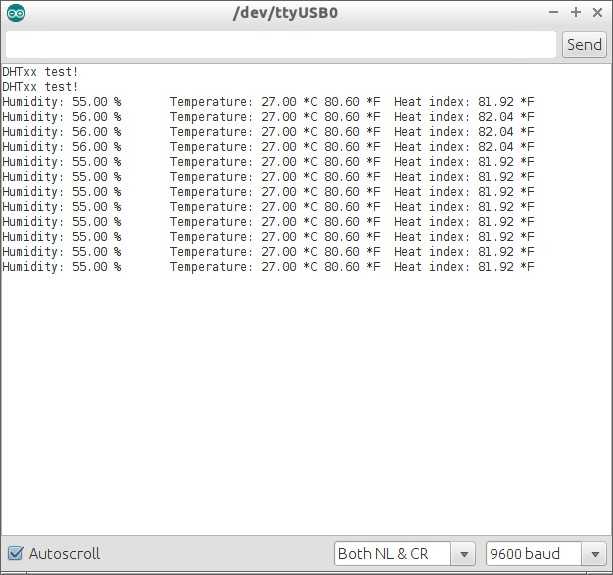
The “DHT.h” library gives you easy to use methods to read the temperature and humidity and also for the index formulas. You can see in the example a 2 seconds delay line inserted just to avoid to display the same readings because of the sensor lag. Readings look like this:
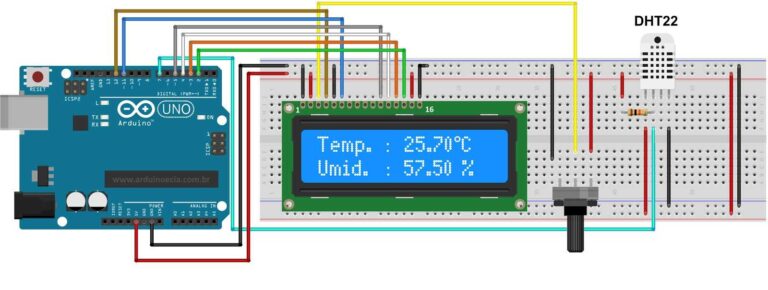
A very project to start with is displaying DHT22 readings on a 2×16 LCD like in the following example:
See the Arduino code example below:
/*
www.geekstips.com
Temperature sensor comparison - DHT22 vs DS18B20 | Arduino tutorial
*/
#include <DHT.h>
#include <LiquidCrystal.h>

// Pin connected to the sensor data pin
#define DHTPIN 7

// Display pins
LiquidCrystal LCD (12, 11, 5, 4, 3, 2);

// Use the line according to the sensor model
// #define DHTTYPE DHT11 // Sensor DHT11
#define DHTTYPE DHT22 DHT Sensor 22 (AM2302)
// #define DHTTYPE DHT21 // DHT Sensor 21 (AM2301)

// Definitions sensor: pin, type
DHT DHT (DHTPIN, DHTTYPE);

// Array symbol degree
byte level [8] = {B00001100,
 B00010010,
 B00010010,
 B00001100,
 B00000000,
 B00000000,
 B00000000,
 B00000000,
 };

void setup ()
{
 // Initialize the display
 lcd.begin (16, 2);
 lcd.clear ();
 // Create the custom character with the symbol of the degree
 lcd.createChar (0, degree);
 // Information on the initial display
 lcd.setCursor (0, 0);
 lcd.print ("Temp. : ");
 lcd.setCursor (13.0);
 // Shows the symbol of the degree
 lcd.write (byte (0));
 lcd.print ("C");
 lcd.setCursor (0.1);
 lcd.print ("Umid. : ");
 lcd.setCursor (14.1);
 lcd.print ("%");

 Serial.begin (9600);
 Serial.println ("Waiting for data ...");
 // Starts DHT sensor
 dht.begin ();
}

void loop ()
{
 // Wait 2 seconds between the measurements
 delay (2000);

 // Moisture reading
 dht.readHumidity float h = ();
 // Reading of temperature (Celsius)
 t = dht.readTemperature float ();

 // Check if the sensor is responding
 if (isnan (h) || isnan (t))
 {
 Serial.println ("Failed to read DHT sensor data !!!");
 return;
 }

 // Display the temperature in the serial monitor and display
 Serial.print ("Temperature: ");
 Serial.print (t);
 lcd.setCursor (8.0);
 lcd.print (t);
 Serial.print (" C * ");
 // Show the moisture in the serial monitor and display
 Serial.print ("humidity: ");
 Serial.print (h);
 Serial.println (" %");
 lcd.setCursor (8.1);
 lcd.print (h);
}
Complete DHT22 Datasheet can be found here provided by sparkfun.
DS18B20 Temperature sensor – 1 Wire technology
So, you’ll probably say that this comparison is not fair because the DS18B20 cannot sense humidity. Well that’s true, but if your project does not require measuring humidity then both can be a good candidate in your projects, being in the same range of price.
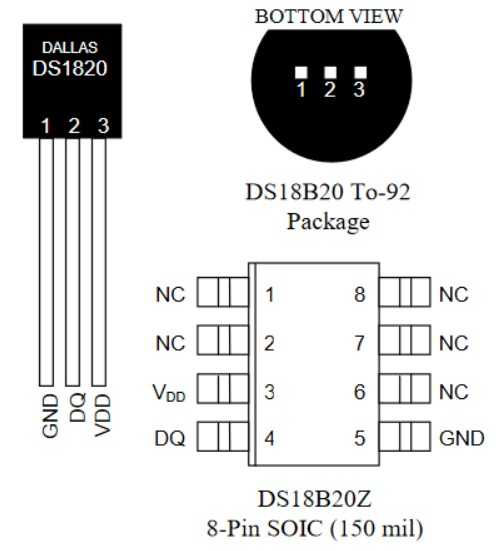
DS18B20 temperature sensor overview
DS18B20 is 1-Wire interface Temperature sensor manufactured by Dallas Semiconductor Corp, very common sensor in PCB embedded electrical circuits that needs temperature sensing. It’s unique 1-Wire interface requires only one port pin for communication and needs no other external components to work. It can be powered from DATA line with a power supply range between 3.3v and 5.5v and in standby mode it does not need any power at all, or so they claim … Thermometer resolution is programmable from 9 to 12 bits and it converts 12-bit temperature to digital word in less than 750 ms.

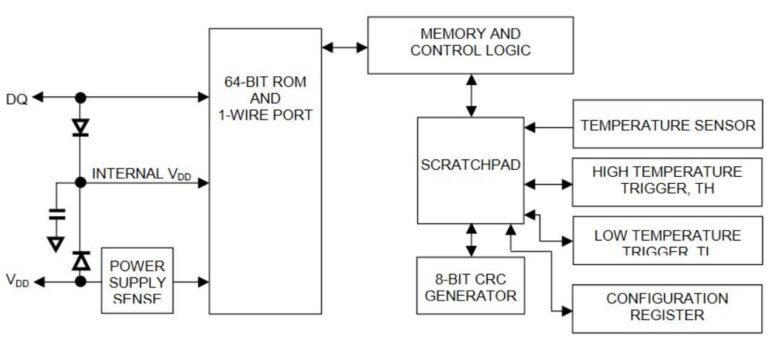
The biggest advantage at this device is that, because each one contains a unique silicon serial number, multiple DS18B20 sensors can coexist on the same 1-Wire bus, which can be a huge advantage in applications like HVAC environmental controls, sensing temperatures inside buildings, equipment or machinery, and process monitoring and control. Here you can see the DS18B20 block diagram:
A very good example of application is what a friend of mine realized. He implemented a floor heating system in his large living and to be able to send heating energy to each zone of the floor, he used 10 DS18B20 sensors in a 1-Wire network. Using this technology he was able to read 10 Temperature sensors using a single GPIO from his Arduino Nano.
From what i could find, this sensor can be found in 3-4 construction versions, the 3 pin one that looks exactly like an ordinary transistor, an 8 pin SOIC version which is called DS18B20z, his little brother DS18B20u which stands for micro because is smaller, and in a waterproof probe style which can be more useful in industrial application, underwater or under the ground.
[IMG-Gal id=221]
Also many producers sell it mounted nicely in a little PCB whit additional resistors and capacitors and common breadboard pins. The DS18B20 temperature sensor has four main data components:
- 64-bit lasered ROM
- Temperature sensor
- Nonvolatile temperature alarm triggers TH and TL
- Configuration register
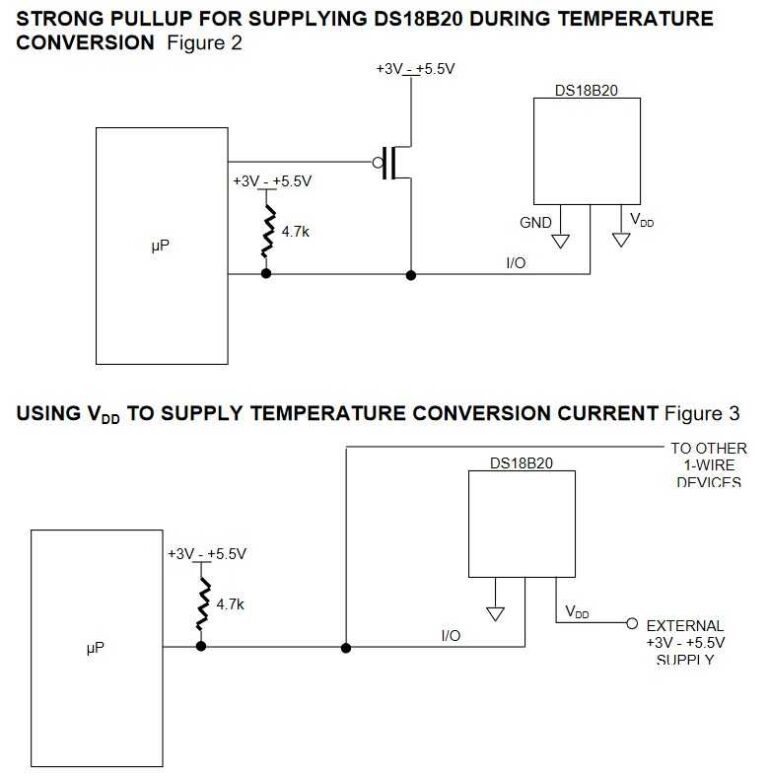
In the block diagram above you can see the PARASITE POWER circuitry which “steals” power whenever the DQ or Vdd pins are high. DQ will provide enough power when the specified timing and voltage are met. The advantages of parasite power are that by parasiting off this pin, no local power source is required for remote sensing and the ROM may be read in absence of normal power. You can see below two circuit sketch examples that can teach you how to supply enough current to work in parameters.
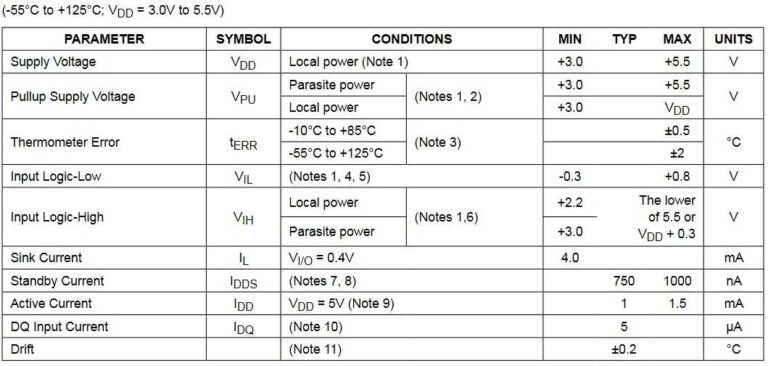
DS18B20 DC electrical characteristics and power consumption
Here is a good example of how to connect many DS18B20 on one wire using 1-Wire NORMAL MODE.
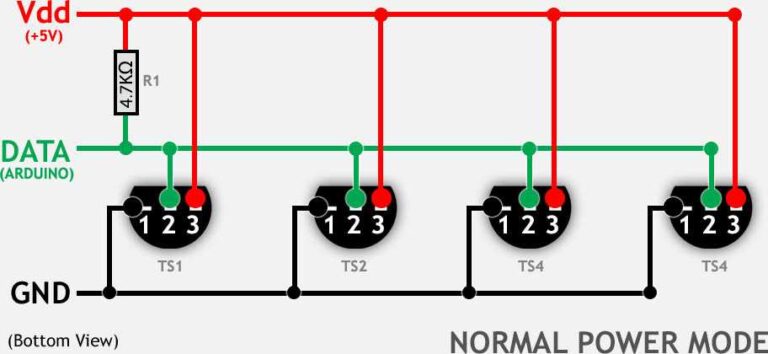
As you can see, this sketch does not use PARASITE MODE, each sensor has individual power supply connection to the VCC wire. You can see how a central data wire connects all sensors creating a monitoring network.
The awesomeness comes in the next image where you can see multiple DS18B20 in a network connecting in PARASITE MODE.
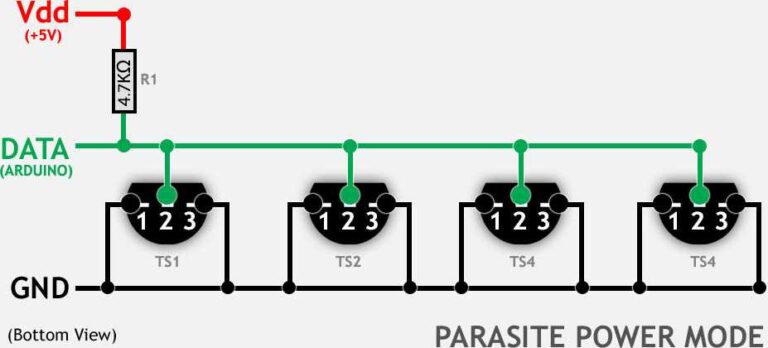
Now this is cool! You just have made an entire sensors network using just two wires !! You still have a tones of GPIOs free on your MCU ready to do other jobs.
Reading DS18B20 temperature sensor with micro-controllers
Talking with the DS18B20 can seem a bit complicated than with DHTxx ones, but I assure you that is not. Connecting the sensor with the Arduino its very easy. Just connect the power pins in NORMAL or PARASITE mode and plug the DATA PIN to any arduino digital GPIO with a 4.7K resistor pulled HIGH. You can see below an example.
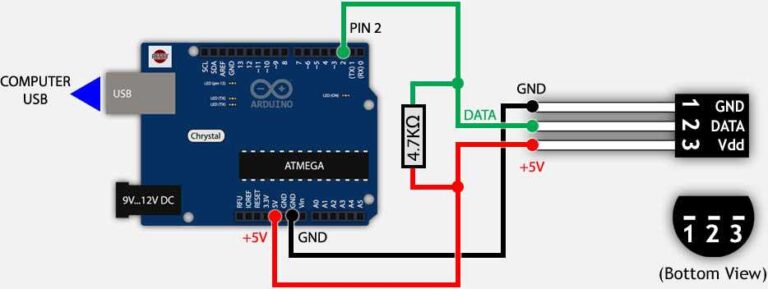
You can also connect it with ESP8266 (See tutorial here) if you want to send data over the internet. See an example in next image.
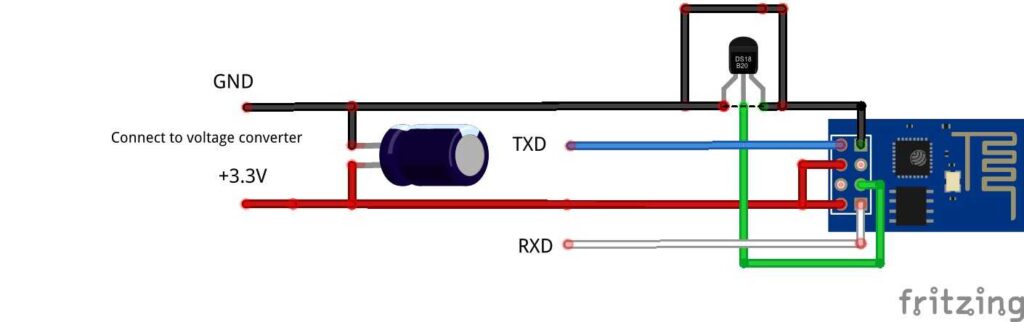
After the connections are made, open your Arduino IDE, go to library manager and search for DS18B20 temperature sensor. Install the library and then open from the examples menu the sketch name OneWireSearch.
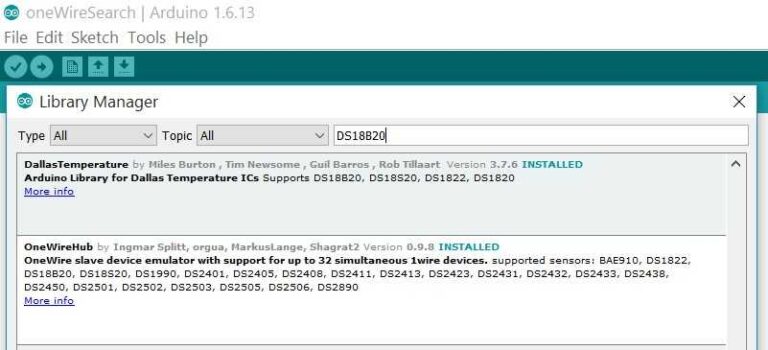
This is like a prerequisite before loading your main program. First you need to find your DS18B20 temperature sensor address in the 1-Wire network by scanning the DATA channel. You can also use search() functions provided by Dallas Arduino libraries in the code to scan automatically next device, but i found them being tricky and didn’t work each time so i don’t recommend it. Load this program into Arduino and run it.
/*
www.geekstips.com
Temperature sensor comparison - DHT22 vs DS18B20 | Arduino tutorial
*/
#include <OneWire.h>

void setup()
{
  Serial.begin(115200);
  Serial.println("//\n// Start oneWireSearch.ino \n//");

  for (uint8_t pin = 2; pin < 13; pin++)
  {
    findDevices(pin);
  }
  Serial.println("\n//\n// End oneWireSearch.ino \n//");
}

void loop()
{
}

uint8_t findDevices(int pin)
{
  OneWire ow(pin);

  uint8_t address[8];
  uint8_t count = 0;


  if (ow.search(address))
  {
    Serial.print("\nuint8_t pin");
    Serial.print(pin, DEC);
    Serial.println("[][8] = {");
    {
      count++;
      Serial.println("  {");
      for (uint8_t i = 0; i < 8; i++)
      {
        Serial.print("0x");
        if (address[i] < 0x10) Serial.print("0");
        Serial.print(address[i], HEX);
        if (i < 7) Serial.print(", ");
      }
      Serial.println("  },");
    } while (ow.search(address));

    Serial.println("};");
    Serial.print("// nr devices found: ");
    Serial.println(count);
  }

  return count;
}
You should see a result like this:
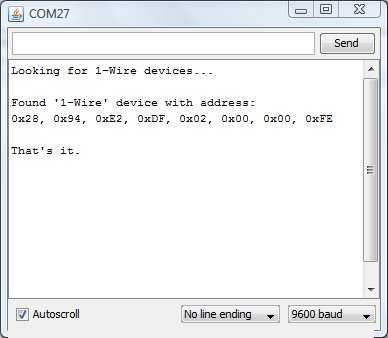
Copy your sensor address printed in console and than go to DallasTemperature example menu and load the sketch called Single or copy the code below:
/*
www.geekstips.com
Temperature sensor comparison - DHT22 vs DS18B20 | Arduino tutorial
*/
#include <OneWire.h>
#include <DallasTemperature.h>

// Data wire is plugged into port 2 on the Arduino
#define ONE_WIRE_BUS 2

// Setup a oneWire instance to communicate with any OneWire devices (not just Maxim/Dallas temperature ICs)
OneWire oneWire(ONE_WIRE_BUS);

// Pass our oneWire reference to Dallas Temperature.
DallasTemperature sensors(&oneWire);

// arrays to hold device address
DeviceAddress insideThermometer;

/*
 * Setup function. Here we do the basics
 */
void setup(void)
{
  // start serial port
  Serial.begin(9600);
  Serial.println("Dallas Temperature IC Control Library Demo");

  // locate devices on the bus
  Serial.print("Locating devices...");
  sensors.begin();
  Serial.print("Found ");
  Serial.print(sensors.getDeviceCount(), DEC);
  Serial.println(" devices.");

  // report parasite power requirements
  Serial.print("Parasite power is: ");
  if (sensors.isParasitePowerMode()) Serial.println("ON");
  else Serial.println("OFF");

  // Assign address manually. The addresses below will beed to be changed
  // to valid device addresses on your bus. Device address can be retrieved
  // by using either oneWire.search(deviceAddress) or individually via
  // sensors.getAddress(deviceAddress, index)
  // Note that you will need to use your specific address here
  //insideThermometer = { 0x28, 0x1D, 0x39, 0x31, 0x2, 0x0, 0x0, 0xF0 };

  // Method 1:
  // Search for devices on the bus and assign based on an index. Ideally,
  // you would do this to initially discover addresses on the bus and then
  // use those addresses and manually assign them (see above) once you know
  // the devices on your bus (and assuming they don't change).
  if (!sensors.getAddress(insideThermometer, 0)) Serial.println("Unable to find address for Device 0");

  // method 2: search()
  // search() looks for the next device. Returns 1 if a new address has been
  // returned. A zero might mean that the bus is shorted, there are no devices,
  // or you have already retrieved all of them. It might be a good idea to
  // check the CRC to make sure you didn't get garbage. The order is
  // deterministic. You will always get the same devices in the same order
  //
  // Must be called before search()
  //oneWire.reset_search();
  // assigns the first address found to insideThermometer
  //if (!oneWire.search(insideThermometer)) Serial.println("Unable to find address for insideThermometer");

  // show the addresses we found on the bus
  Serial.print("Device 0 Address: ");
  printAddress(insideThermometer);
  Serial.println();

  // set the resolution to 9 bit (Each Dallas/Maxim device is capable of several different resolutions)
  sensors.setResolution(insideThermometer, 9);

  Serial.print("Device 0 Resolution: ");
  Serial.print(sensors.getResolution(insideThermometer), DEC);
  Serial.println();
}

// function to print the temperature for a device
void printTemperature(DeviceAddress deviceAddress)
{
  // method 1 - slower
  //Serial.print("Temp C: ");
  //Serial.print(sensors.getTempC(deviceAddress));
  //Serial.print(" Temp F: ");
  //Serial.print(sensors.getTempF(deviceAddress)); // Makes a second call to getTempC and then converts to Fahrenheit

  // method 2 - faster
  float tempC = sensors.getTempC(deviceAddress);
  Serial.print("Temp C: ");
  Serial.print(tempC);
  Serial.print(" Temp F: ");
  Serial.println(DallasTemperature::toFahrenheit(tempC)); // Converts tempC to Fahrenheit
}
/*
 * Main function. It will request the tempC from the sensors and display on Serial.
 */
void loop(void)
{
  // call sensors.requestTemperatures() to issue a global temperature
  // request to all devices on the bus
  Serial.print("Requesting temperatures...");
  sensors.requestTemperatures(); // Send the command to get temperatures
  Serial.println("DONE");

  // It responds almost immediately. Let's print out the data
  printTemperature(insideThermometer); // Use a simple function to print out the data
}

// function to print a device address
void printAddress(DeviceAddress deviceAddress)
{
  for (uint8_t i = 0; i < 8; i++)
  {
    if (deviceAddress[i] < 16) Serial.print("0");
    Serial.print(deviceAddress[i], HEX);
  }
}
This code itself explains trough comments how to make it work for you. Just paste the address if you choose to use manually assigning method. Load the code and you should see a result like this:
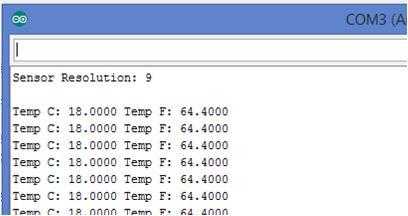
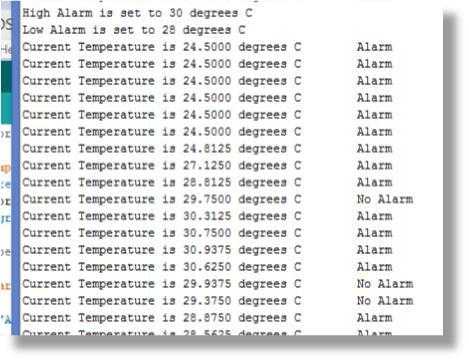
Another cool thing about DS18B20 is that it gives you the ability to set alarm points. Things can become handy when you need to create temperature protection thresholds or you need to control things. Here is an example of how to set alarms with DS18B20 temperature sensor:
/*
www.geekstips.com
Temperature sensor comparison - DHT22 vs DS18B20 | Arduino tutorial
*/
#include <OneWire.h>
#include <DallasTemperature.h>

// Create a Onewire Referenca and assign it to pin 10 on your Arduino
OneWire oneWire(10);

// declare as sensor referenec by passing oneWire reference to Dallas Temperature.
DallasTemperature sensors(&oneWire);

// declare your device address
// YOUR ADDRESS GOES HERE!!!!
DeviceAddress tempSensor = {0x28, 0xFF, 0x2B, 0x45, 0x4C, 0x04, 0x00, 0x10};

//Alarm Set Points
char lowSetPoint = 28;
char hiSetPoint = 30;

// A Variable to hold the temperature you retrieve
float tempC;

void setup(void)
{
  char alarmTemp;
  // start your serial port
  Serial.begin(9600);
  // Start up the DallasTemperature library
  sensors.begin();

  // alarm when temp is higher than value assigned to hiSetPoint
  sensors.setHighAlarmTemp(tempSensor, hiSetPoint);
  // alarm when temp is lower than value assigned to lowSetPoint
  sensors.setLowAlarmTemp(tempSensor, lowSetPoint);

  // Print the alarm set points to the serial monitor

  // Set Measurement Resolution
  sensors.setResolution(tempSensor, 12);

  alarmTemp = sensors.getHighAlarmTemp(tempSensor);
  Serial.print("High Alarm is set to ");
  Serial.print(alarmTemp, DEC);
  Serial.println(" degrees C");

  alarmTemp = sensors.getLowAlarmTemp(tempSensor);
  Serial.print("Low Alarm is set to ");
  Serial.print(alarmTemp, DEC);
  Serial.println(" degrees C");
}


void loop(void)
{
  // tell your sensor to measure the temperature

  sensors.requestTemperaturesByAddress(tempSensor); // Send the command to get temperatures
  Serial.print("Current Temperature is ");
  Serial.print(sensors.getTempC(tempSensor),4);
  Serial.print(" degrees C \t");

  // See if the temperature is above the high set point or below the low set point

  if (sensors.hasAlarm(tempSensor))
  {
    Serial.println("Alarm");
  }
  else{
    Serial.println("No Alarm");
  }
  delay(1000);
}
After uploading this into your Arduino you should see following results:
Complete DS18B20 temperature sensor datasheet can be found here provided by sparkfun.
Quick comparison between DHT22 and DS18B20 features
Now, we connected both sensors, we saw that both are working pretty well, but which one is better? Well let’s see a list of features and maybe this will make things clear:
- Do you need to measure Humidity ??
- Is your project outdoor or indoor?
- Do you need one sensor or many sensors?
- What is your temperature range?
- Should the temperature sensor stay in high moisture or water?
- What is your measurement interval?
- Is your project powered by batteries?
- What is your budget?
Final thoughts
I choose to use DS18B20 temperature sensor for projects that require only Temperature measurements and DHT22 for projects that needs to measure Humidity too. I think that if you only need temperature, DS18B20 is a better choice because of the price and also because its viability an 1-Wire technology. DHT series are a good choice for ambient weather monitoring and IoT data logging, and also looks better if you choose to display them in a public place. Check my ESP8266 Tutorial if you want to find out how to send sensors data over the internet.
Hoping that this article inspired you, i kindly invite you share this article, subscribe my YouTube channel and join the communities on social networks. Please feel free to comment or send suggestions / remarks so i can improve the content quality!
Awesome comparison. I’m planning on using to use both in my setup. The DS18B20 to replace the some thermostats, which will not have power but have two wires, and the DHT22 powered in a few places.
I’ve read that star configurations of 1-wire sensors are the hardest to get working. Would you have any guess if I could expect 5 of these sitting on the end of 5 different thermostat wires to work if I joined them all together?
If it’s unlikely to work I might pick up a DS2408 and give them each their own channel.
Hello an thank you for your time! I think you should have no problem using star design with 1-Wire devices. You should really check this article 1 wire various formations:
https://www.maximintegrated.com/en/app-notes/index.mvp/id/148
Awesome, thank you! I’ll give it a try.
I appreciate your knowledge sharing.
thank you
Hi Lucian.
Congratulations on your work, very good, it helped me a lot.
Please you could fix your 16X2 DTH22 LCD code, it presented several “errors”. Look at your code …
I took the liberty to run the parts I know.
thank you
/*lcd_dht22
http://www.geekstips.com
Temperature sensor comparison – DHT22 vs DS18B20 | Arduino tutorial
*/
#include
#include
#include
// Pin connected to the sensor data pin
#define DHTPIN 7
// Display pins
LiquidCrystal lcd (12, 11, 5, 4, 3, 2);
// Use the line according to the sensor model
// #define DHTTYPE DHT11 // Sensor DHT11
#define DHTTYPE DHT22 // DHT Sensor 22 (AM2302)
// #define DHTTYPE DHT21 // DHT Sensor 21 (AM2301)
// Definitions sensor: pin, type
DHT dht(DHTPIN, DHTTYPE);
// Array symbol degree
byte level [8] = {B00001100,
B00010010,
B00010010,
B00001100,
B00000000,
B00000000,
B00000000,
B00000000,
};
void setup ()
{
// Initialize the display
lcd.begin (16, 2);
lcd.clear ();
// Create the custom character with the symbol of the degree
///// lcd.createChar (0, degree);//—————–??????
// Information on the initial display
lcd.setCursor (0, 0);
lcd.print (“Temp. : “);
lcd.setCursor (13,0);
// Shows the symbol of the degree
lcd.write (byte (0));
lcd.print (“C”);
lcd.setCursor (0,1);
lcd.print (“Umid. : “);
lcd.setCursor (14,1);
lcd.print (“%”);
Serial.begin (9600);
Serial.println (“Waiting for data …”);
// Starts DHT sensor
dht.begin ();
}
void loop ()
{
// Wait 2 seconds between the measurements
delay (2000);
// Moisture reading
float h = dht.readHumidity();
// Reading of temperature (Celsius)
float t = dht.readTemperature();
// Check if the sensor is responding
if (isnan (h) || isnan (t))
{
Serial.println (“Failed to read DHT sensor data !!!”);
return;
}
// Display the temperature in the serial monitor and display
Serial.print (“Temperature: “);
Serial.print (t);
lcd.setCursor (8,0);
lcd.print (t);
Serial.print (” C * “);
// Show the moisture in the serial monitor and display
Serial.print (“humidity: “);
Serial.print (h);
Serial.println (” %”);
lcd.setCursor (8,1);
lcd.print (h);
}