

Introduction
If you’ve ever built an IoT or Arduino project and wanted to display sensor data, show system status, or just avoid plugging in a serial monitor every time, you’ve probably looked into adding a screen. But with so many display modules out there — OLED, LCD, e-paper, TFT — choosing the right one can feel overwhelming.
I’ve tested a bunch of these screens in real projects, from ultra-low-power sensors to full-on smart displays. This guide isn’t just a spec sheet — I’ll walk you through the most common types of screens used in IoT and microcontroller projects, how they perform in real-world use, and where each one makes sense.
Whether you’re working with an ESP32, Arduino Uno, or even an ESP8266, this article will help you pick the right screen for your next build — with examples and real trade-offs you should know upfront.
Let’s dive in.
Types of Displays Used in IoT & Arduino Projects
There are quite a few display options out there, but most IoT and Arduino projects stick to 4 or 5 tried-and-true modules. Below are the most common types I’ve personally worked with — each with its own quirks, strengths, and ideal use cases.
OLED Displays (e.g., SSD1306 128×64)
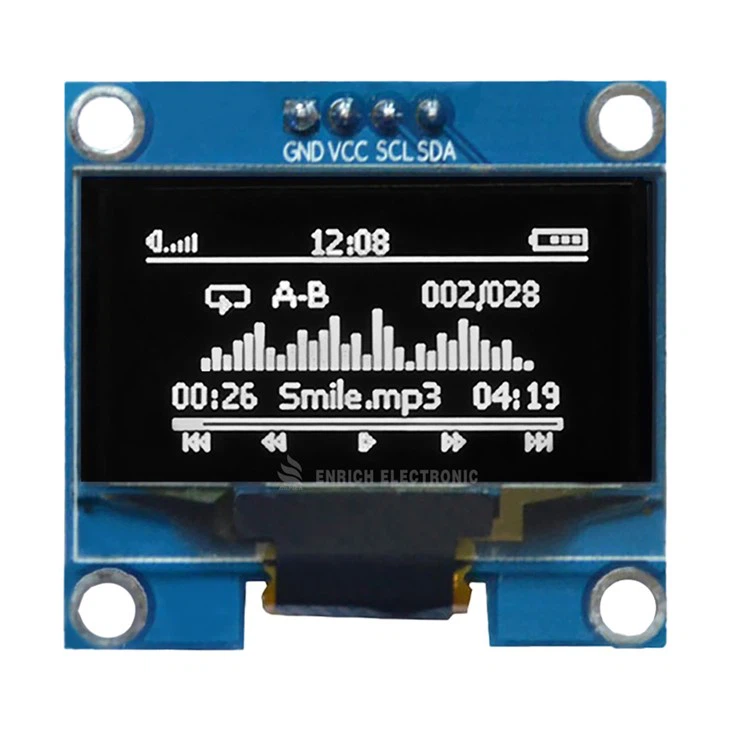
These little monochrome screens are super popular in the maker world. They’re small (usually 0.96″), low-power, and incredibly crisp for their size. I’ve used them in everything from air quality monitors to battery-powered temperature sensors.
- Interfaces: I2C (most common), SPI
- Pros: Very low power, high contrast, readable from all angles
- Cons: Small screen space, no color
If you’re using Arduino, the Adafruit SSD1306 library is one of the easiest ways to get started.
TFT LCD Displays (e.g., ILI9341 2.4″ or 2.8″)
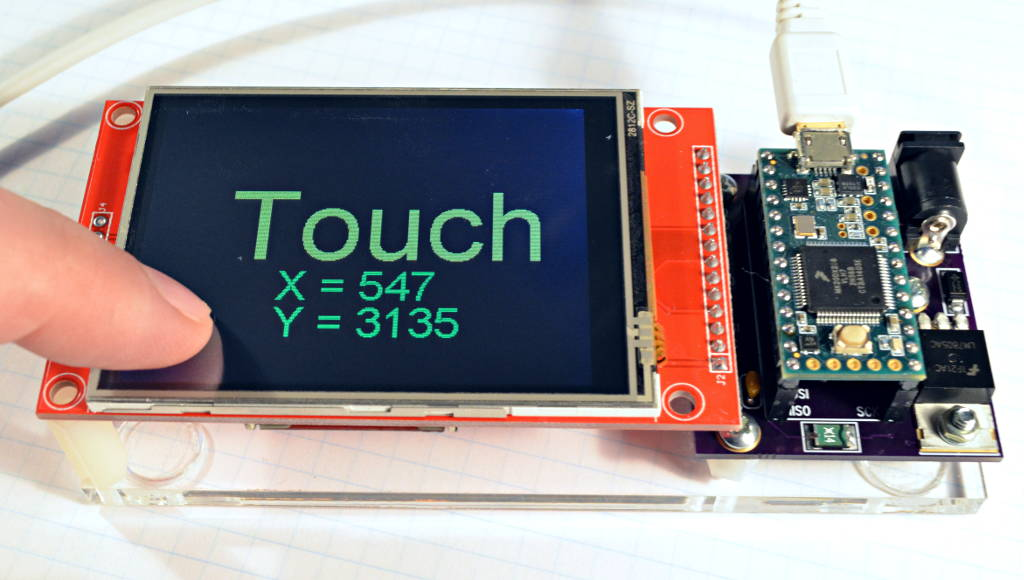
If you want color graphics, charts, or UI elements, these are great. I used one in a weather station project to show animated weather icons and colored data graphs — looks great, but not for battery-powered builds.
- Interface: SPI (sometimes 8-bit parallel)
- Pros: Full color, medium resolution, widely supported
- Cons: More power-hungry, slower refresh rate on SPI
-> Buy it from Amazon with discount %
For ESP32 projects, libraries like TFT_eSPI offer excellent performance and customization.
E-Paper (eInk) Displays
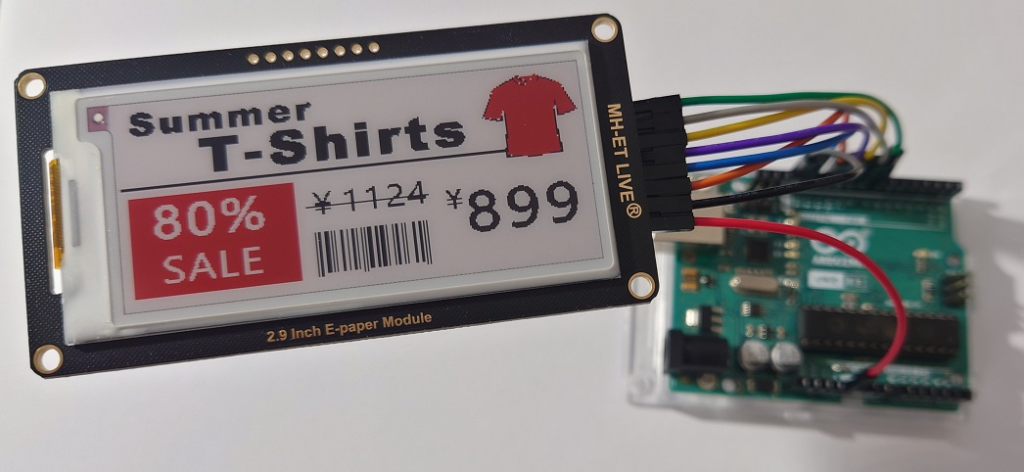
E-paper displays are perfect for slow-refresh or ultra-low-power projects. I built a grocery list display that lasted for months on a coin cell — no joke. They only draw power when the screen changes.
- Interface: SPI
- Pros: Zero power when idle, sunlight-readable, elegant look
- Cons: Slow refresh (1–2 seconds), limited color options
-> Buy it from Amazon with discount %
Manufacturers like Waveshare make a wide range of e-paper modules, many with Arduino and Raspberry Pi libraries.
LCD Character Displays (e.g., 1602 with I2C Backpack)
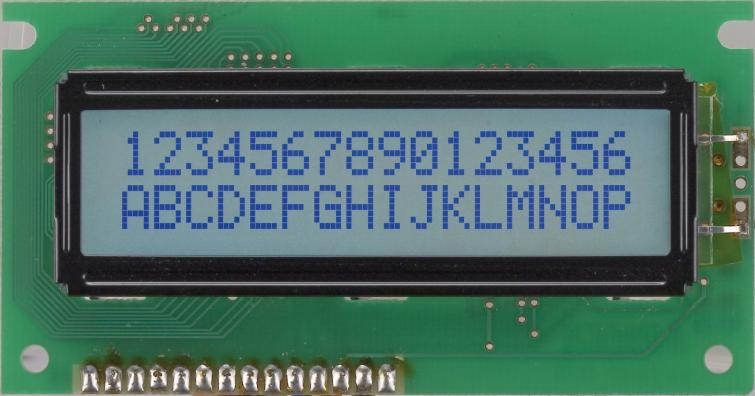
Old-school but still useful. These are great for quick text feedback: temperature readouts, IP addresses, or system logs. With an I2C backpack, they only use two GPIO pins.
- Interface: I2C (via backpack) or parallel
- Pros: Simple, clear text output, low power
- Cons: No graphics, not visually impressive
-> Buy it from Amazon with discount %
There are plenty of LiquidCrystal I2C libraries that work out of the box with Arduino.
Smart Displays (e.g., Nextion, LilyGo T-Display)
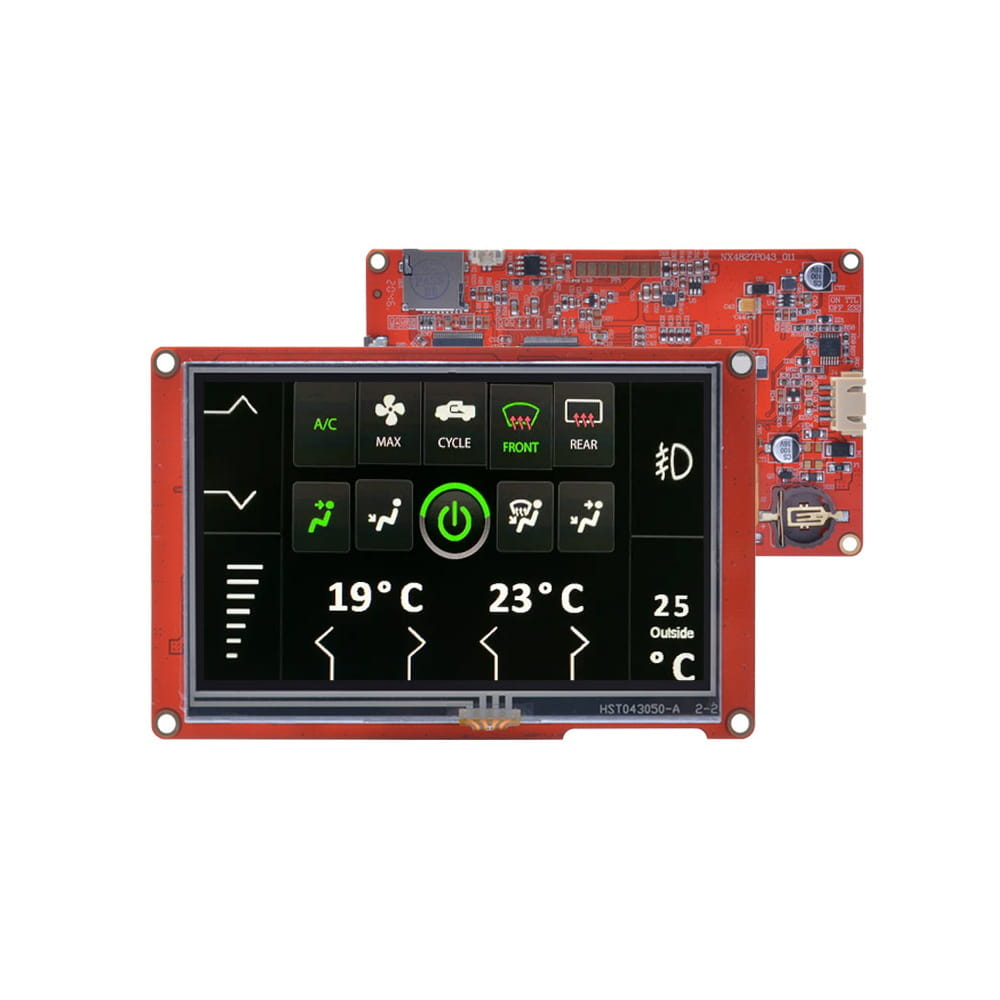
These modules have built-in processors or touch screens. You can offload the UI logic to the display itself — which is a huge win for complex interfaces. I once used a LilyGo T-Display ESP32 to show Wi-Fi signal strength and sensor data — all on the board.
- Interface: Serial (Nextion), SPI + USB (T-Display)
- Pros: Touch input, onboard UI processing, flashy
- Cons: More expensive, can lock you into vendor-specific tools
Nextion has its own GUI editor, and LilyGo boards are usually Arduino- or ESP-IDF compatible.
Comparison Table: Specs, Power, Interface, Pros & Cons
Choosing the right screen often comes down to a few key factors: interface, power consumption, size, and how much UI flexibility you actually need. Here’s a side-by-side breakdown of the most popular options used in microcontroller and IoT projects.
| Display Type | Interface | Power Use | Size | Pros | Cons |
|---|---|---|---|---|---|
| OLED 0.96″ | I2C / SPI | Very Low | Small | Crisp, high contrast, low power | Limited display area |
| TFT LCD 2.4″ | SPI | Medium | Medium | Full color, flexible UI | Higher power draw, slower on SPI |
| E-Paper 2.9″ | SPI | Ultra Low | Medium | Zero idle power, great in sunlight | Slow refresh, expensive |
| LCD 1602 (I2C) | I2C | Low | Small | Simple, reliable text display | No graphics, outdated look |
| Nextion / T-Display | Serial / SPI | High | Medium-Large | Touch support, rich interface | Pricey, can be vendor-specific |
Quick Takeaways:
- Go OLED for small, battery-powered builds with limited UI.
- Use TFT LCD when you need color, basic graphics, and you’re not worried about power.
- Pick e-paper for static data displays that prioritize power savings and sunlight readability.
- Stick to 1602 LCD if you want simplicity and retro text output.
- Choose smart displays if your UI needs to be interactive or animated — especially if your main microcontroller is resource-constrained.
Up next: I’ll walk through real-world projects I’ve built (or helped build) using these displays — to show how theory holds up in practice.
Real Use Cases / Scenarios
Sometimes the best way to understand a piece of hardware is to see it in action. These are actual projects I’ve built or helped others troubleshoot — each one using a different type of display, chosen based on the project’s constraints and goals.
OLED: Indoor Air Quality Monitor (ESP8266 + SSD1306)
In a compact indoor air quality monitor, I paired a BME680 sensor with an SSD1306 0.96″ OLED. The screen showed CO₂ estimates, temperature, and humidity — perfect for quickly checking indoor air freshness.
- Why it worked: The OLED was crisp, low-power, and easy to update without draining the battery.
- Bonus: Used the ESP8266 + OLED combo for quick updates and minimal power draw.
TFT LCD: Weather Station (ESP32 + BME280 + ILI9341)
This was a full-color display showing weather icons, temperature trends, and forecast data pulled via Wi-Fi. The ILI9341 TFT LCD gave just enough resolution for a usable daily dashboard.
- Why it worked: More UI freedom, colorful graphs, and decent screen size.
- Tip: The TFT_eSPI library made integration fast with ESP32.
E-Paper: Smart Calendar Display
I set up a 2.9″ Waveshare e-paper module to show a shared calendar that updated every hour via Wi-Fi. It only consumed power during updates, so it could run for weeks on a small lithium battery.
- Why it worked: Clean, zero-power idle display and perfect readability even in sunlight.
- Consideration: Refreshing is slow, so not great for real-time data.
LCD 1602: Garden Irrigation Controller
For a basic Arduino-based irrigation system, I used a 1602 LCD with I2C backpack to show soil moisture levels and watering schedules. No graphics needed — just reliable, readable text.
- Why it worked: Simple, robust, and compatible with virtually every Arduino board.
- Library used: LiquidCrystal_I2C
Smart Display: Wi-Fi Signal Monitor (LilyGo T-Display ESP32)
This one was a bit more advanced — I used a LilyGo T-Display, which has a 1.14″ color TFT and onboard ESP32. It displayed Wi-Fi signal strength, IP address, and even MQTT connection status.
- Why it worked: One board for logic and display, all in a compact package.
- Pro tip: The built-in USB-C and TFT support made it a great all-in-one module for portable tools.
These real-world examples show that each screen shines in a different context. The key is understanding your project’s priorities: power, interactivity, clarity, or cost.
How to Choose the Right Display
Now that you’ve seen what each screen type can do, it’s time to choose one that matches your project. There’s no one-size-fits-all answer — but a few key questions can help narrow things down quickly.
1. What’s Your Power Budget?
If your project runs on batteries or solar, power consumption is critical.
- Go with OLED or e-paper for ultra-low power needs.
- Avoid TFT LCDs and smart displays unless you’ve planned for frequent charging or a large battery.
Want to go even deeper into power-efficient platforms? Check out our article on ESP-NOW + Wi-Fi Gateway — a great pairing for ultra-low-power sensor networks.
2. Do You Need Graphics, or Just Text?
If your display is mostly for status updates, IP addresses, or sensor values:
- Use LCD 1602 or OLED for text-based output.
- Choose TFT or smart displays for data visualizations or anything interactive.
3. How Much Space Do You Have?
If your enclosure is tiny (e.g. wearables or compact sensor nodes), an OLED 0.96″ or LilyGo T-Display will fit better than a larger TFT or e-paper panel.
- Don’t forget to factor in wiring space and clearance — especially if you’re stacking modules or adding shields.
4. Is the Display Outdoors or in Direct Light?
- E-paper is unbeatable in sunlight and static displays.
- OLED and TFTs can struggle outdoors without added brightness or shielding.
For outdoor use, I’ve found e-paper + Wi-Fi or LoRa to be a killer combo — great for dashboards or environmental sensors.
5. Do You Need Touch or GUI Elements?
- Use a Nextion display or LilyGo T-Display if your project requires user interaction.
- Otherwise, keep it simple — touch support usually adds cost and complexity.
Final tip: Start small. If you’re experimenting, grab an OLED or LCD 1602 — they’re cheap, widely supported, and teach you the basics of interfacing with displays on a microcontroller.
Final Thoughts
Choosing the right display for your IoT or Arduino project isn’t just about specs — it’s about context. What are you building? Where will it live? How will users (or you) interact with it?
Over the years, I’ve learned that even the tiniest OLED or simplest LCD can be the perfect solution — as long as it fits the project’s needs. At the same time, advanced displays like TFTs and smart touchscreens can unlock a whole new level of interactivity and UI polish when the project calls for it.
Whatever your project, my advice is to start with your constraints (power, size, simplicity) and work outward. The display should support your project’s goals — not complicate them.
Call to Action
Need help picking a screen for a specific build? Let me know in the comments or shoot me an email — I’d love to help.
Want to go deeper?
- Learn how to get started with Zephyr RTOS — a great open-source platform for building display-aware IoT systems.
- Build low-power sensor nodes with ESP-NOW and a Wi-Fi Gateway — perfect if you’re using a screen to monitor real-time data locally.
- Compare your microcontroller options in our ESP32 Variants Breakdown to see which chip pairs best with your display choice.
Have a display you love (or hate)? Let me know. I’m always testing new modules and would love to hear what’s working for you.
1 thought on “Best Displays for IoT & Arduino Projects: A Practical Guide with Real Examples”