
What’s the point of building an IoT project if you can’t access it live from anywhere using your smartphone?
The whole idea behind the “Internet of Things” is exactly that — being able to monitor and control your “things” remotely, at any time, from any place. Real-time access is what turns a simple gadget into something truly smart.
In this ESP8266 Arduino tutorial, I’ll show you a simple 3-step method to send push notification messages directly from your IoT project to your Android smartphone — using nothing more than a standalone, low-cost Wi-Fi module.
Examples of IoT applications that requires push notifications:
- Temperature monitoring
- Flood / water level monitoring
- Natural methane gas monitoring
- Baby wake-up noise alert
- Door opening sensor
- Smoke detector
Push notifications from ESP8266 Arduino compatible Wi-Fi module to Android / IOS mobile devices
Is it hard to do it?
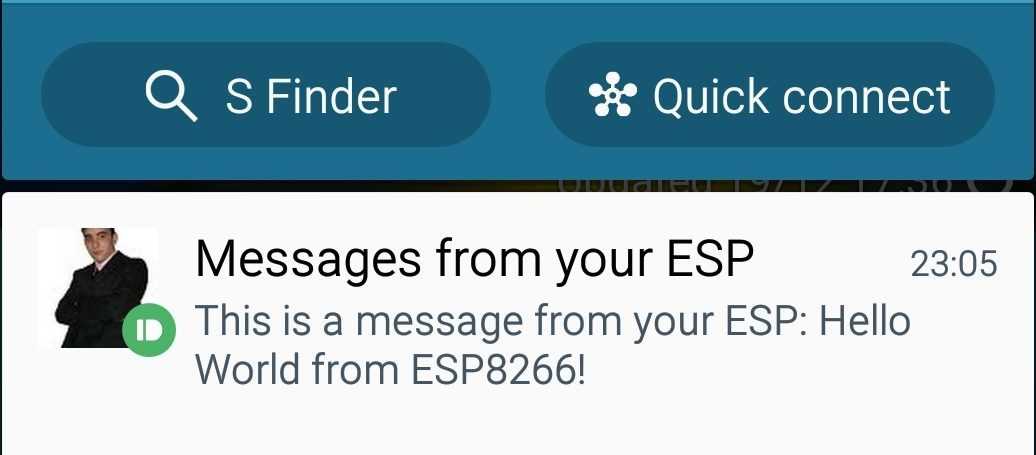
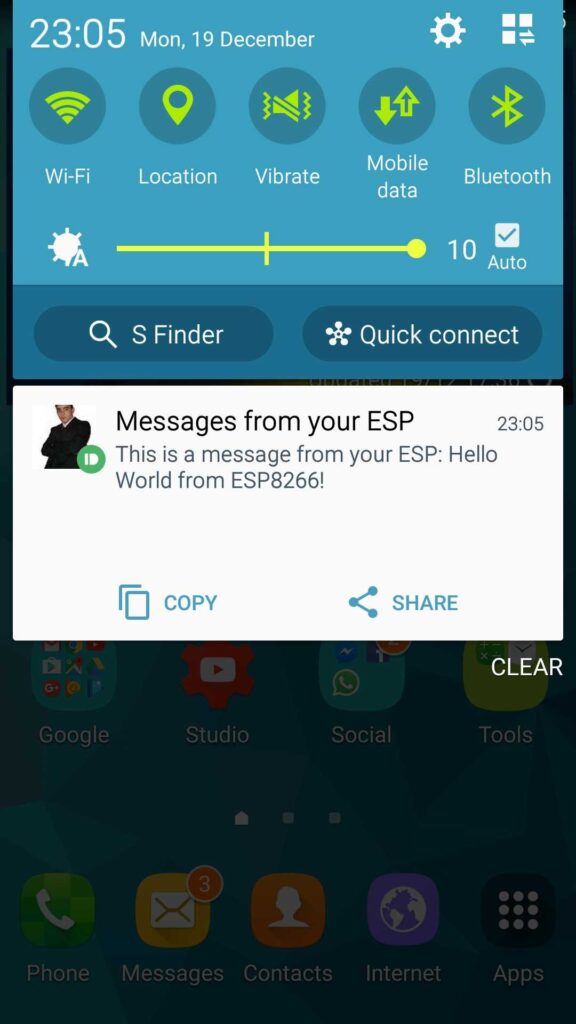
Nope, this shouldn’t take more than 30 minutes to make it work. This esp8266 arduino tutorial is so simple that you will just love it at the end. Follow the next steps and in no more than 20-30 minutes your Android or IOS smartphone will receive a push notification like this:
 Project requirements:

- ESP8266 Arduino compatible module (Amazon %)
- 3.3v Power supply for ESP8266 module (Amazon %)
- Smartphone (Android or IOS) (Amazon %)
- Wi-Fi Internet connection available (your home router will work)
- A way to upload code to your ESP8266 (see complete tutorial here)
Note: If you don’t know what an ESP8266 is, you should read this complete ESP8266 module tutorial first, and than continue.
Were do you start?
Step 1: setup the PushBullet service (free)
“Pushbullet is an internet service which for SMS sending, notification management and file sending between your mobile devices and pc.”
First you need to go to PushBullet and make a new free account. Activate your account, login in the website and you will see the next screen:
 Click on you mobile OS type (Android or IOS) or go in the apps market / Google play and search for PushBullet and setup the application on your mobile device using the same account you’ve just created. After that you should see your mobile smartphone in the Devices menu.
 Go to Settings menu and create a new Access Token by pressing Create Access Token button.

 Get the access token and save it to a notepad text file.
Step 2: Setup PushingBox, IoT notification center (free)
“PushingBox is a cloud that can send notification, emails, tweets based on API calls in real time.”
Go to PushingBox, create a new account for free and login. Go to Dashboard and click on My Services – > Add a service. Select PushBullet service from the list and you should see the following screen:
 Give it a name, and paste your pushbullet token which you should have in your notepad text file and submit the form. After that go to My Scenarios and add a new scenario. You should now be able to add a new Action to your scenario.
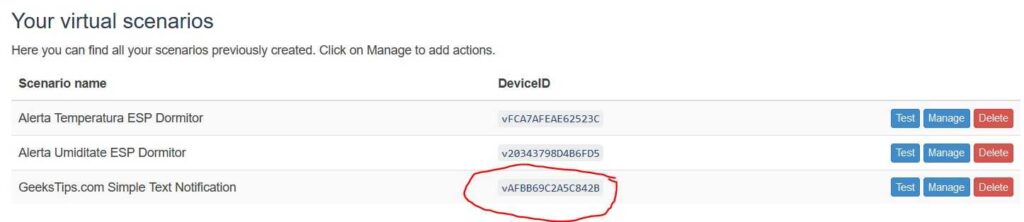
 The text between the $param$ signs will be your HTTP GET parameter, you will see in the code later. You will be able to replace each parameter like that with your data like temperature or humidity. Save the action and go back to your virtual scenarios list. You should be able to see your new scenario and copy the DeviceId.
 Step 3: Code example for your ESP8266 Arduino compatible module

This code is very simple to use, it just connects to your Wi-Fi router and then sends a HTTP request to pushingbox API related to your unique device ID. Modify the code by replacing the **** with your Wi-Fi credentials and your PushingBox deviceId. Upload the code to your ESP8266 and test it.
/************
GeeksTips.com
ESP8266 Arduino Tutorial - Push notification messages example
Arduino code example
www.geekstips.com

- replace the dots with your Wi-fi credentials and
- your deviceId from pushingBox account
*/
#include <ESP8266WiFi.h>

// PushingBox scenario DeviceId code and API
String deviceId = "*************";
const char* logServer = "api.pushingbox.com";

const char* ssid = "**********";
const char* password = "***********";

void setup() {
  Serial.begin(74880);
  // Sending a notification to your mobile phone
  // function takes the message as a parameter
  sendNotification("Hello World from ESP8266!");
}

void sendNotification(String message){

  Serial.println("- connecting to Home Router SID: " + String(ssid));

  WiFi.begin(ssid, password);
  while (WiFi.status() != WL_CONNECTED) {
    delay(500);
    Serial.print(".");
  }

  Serial.println();
  Serial.println("- succesfully connected");
  Serial.println("- starting client");

  WiFiClient client;

  Serial.println("- connecting to pushing server: " + String(logServer));
  if (client.connect(logServer, 80)) {
    Serial.println("- succesfully connected");

    String postStr = "devid=";
    postStr += String(deviceId);
    postStr += "&message_parameter=";
    postStr += String(message);
    postStr += "\r\n\r\n";

    Serial.println("- sending data...");

    client.print("POST /pushingbox HTTP/1.1\n");
    client.print("Host: api.pushingbox.com\n");
    client.print("Connection: close\n");
    client.print("Content-Type: application/x-www-form-urlencoded\n");
    client.print("Content-Length: ");
    client.print(postStr.length());
    client.print("\n\n");
    client.print(postStr);
  }
  client.stop();
  Serial.println("- stopping the client");
}

void loop() {}
Final thoughts
You can send notifications just by using PushBullet standalone, without PushingBox but in order to do that you need to use HTTPS requests with secure connection, and you may consider finding a certificate. Also you need to send a specific data model in JSON format. For more information read the PushBullet API documentation. I use PushingBox because it offers many services, not only for PushBullet, and also the API documentation for PushingBox seems more clear.
PushingBox and PushBullet are two incredible powerful free platforms which you definitely need to try them if you are building an Internet of Things project. I recommend you to test them, the APIs are quite easy to work with, and the features are freaking awesome for paying nothing.
Also if you are interested in monitoring temperature and humidity with Arduino or ESP8266 you can read this Arduino temperature sensors tutorial.
Hoping that this article inspired you, i kindly invite you share this article, subscribe my YouTube channel and join the communities on social networks. Please feel free to comment or send suggestions / remarks so i can improve the content quality!
Enjoy!
Hi .Great tutorial..Can you also send me the circuit diagram showing connections between ESP8266 and Arduino ?
Hello, you can find diagrams in this article: ESP8266 Arduino connection example
Thank you for your tutorial! it’s help me..
Doesn’t seem to work for me, followed the tutorial, got all of the tests to work when pushing the message from pushingbox to pushbullet, but when it came to the code, it wouldn’t push the notification when I uploaded the code. My WIFI creds are correct as is my ID, so I’m quite stumpted as to why it wouldn’t upload. Maybe a video would help to show if I missed anything?
Thanks alot,
It works like a charm.
Cheers!